
Google Cloud 403 PERMISSION_DENIED: How to Troubleshoot IAM, Service Accounts, and Policy Inheritance Conflicts
You have engineered a flawless data pipeline. Your event-routing architecture is highly scalable, your analytics tracking is sending perfectly formatted payloads, and your data warehouse is primed to receive terabytes of information. You execute the deployment, and immediately, your entire system crashes into a brick wall painted with a single, universally hated phrase: HTTP 403 PERMISSION_DENIED.
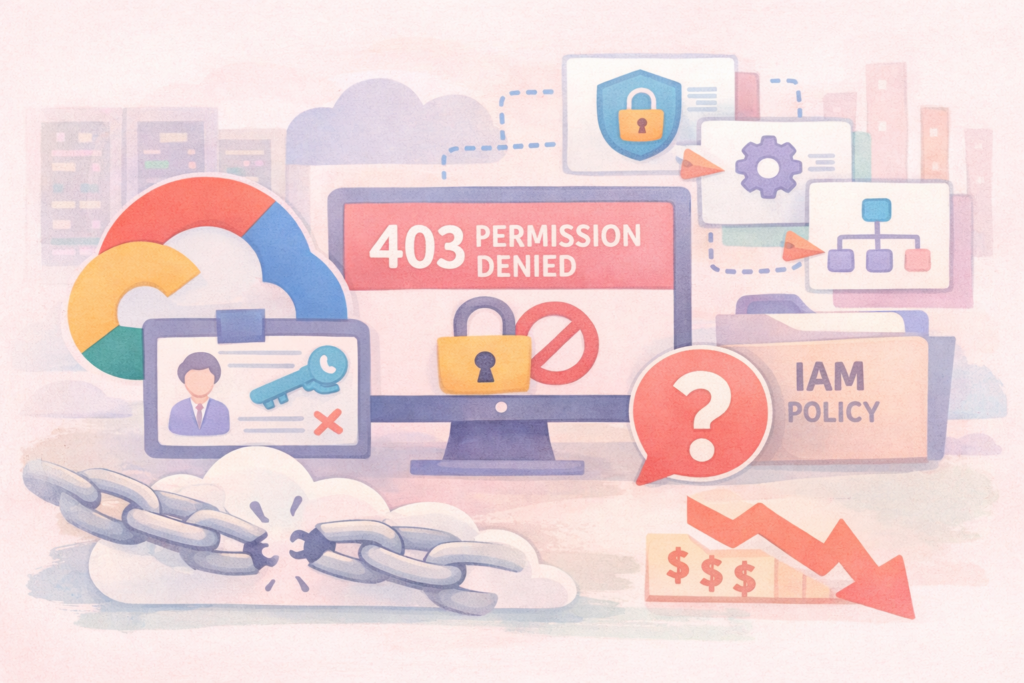
Google Cloud Identity and Access Management (IAM) is not just a security feature; it is a paranoid, highly strict administrative state. By default, Google Cloud trusts absolutely no one and nothing. An empty Google Cloud project is a digital fortress where even your own automated services are treated as hostile external entities until proven otherwise.
When you encounter access denial errors, it means your attempt to navigate this bureaucracy has failed. This article is a definitive, heavily detailed guide to understanding why your access was rejected, how to scientifically diagnose the root cause, and how to permanently resolve IAM conflicts using architectural best practices—all without relying on blind code-copying. We will cover the exact symptoms, the complex waterfall of policy inheritance, and the specific diagnostic tools you must use to identify the exact missing permission.
Part 1: The Anatomy of IAM (How Google Cloud Thinks)
Before you can troubleshoot an access denial, you must understand the language of the gatekeeper. Google Cloud IAM operates on a very specific mathematical logic. It constantly evaluates a single, fundamental question for every single API call: Who is asking to do What on which Resource, and under what Condition?
To answer this, IAM relies on three core components:
1. The Principal (Who) A principal is the identity attempting to take an action. In an enterprise environment, you are rarely dealing with human user accounts (like your personal Gmail or corporate Workspace email). Instead, you are dealing with Service Accounts. A service account is a non-human identity created specifically for your applications, virtual machines, and continuous integration pipelines. When your data transformation script tries to write to a database, it is the Service Account that is knocking on the door, not you.
2. The Role (What) Google Cloud does not allow you to assign individual, atomic permissions directly to a user. You cannot simply grant someone the ability to “delete a file.” Instead, permissions are bundled into collections called Roles. There are three types of roles, and choosing the wrong one is the primary cause of security breaches and 403 errors:
- Basic Roles (Owner, Editor, Viewer): These are legacy roles from the original days of Google Cloud. Never use them. Assigning the Editor role to a service account gives it the power to modify almost any resource in the entire project. It is the equivalent of giving a junior intern the master keys to the server room and the corporate bank account.
- Predefined Roles: These are roles carefully crafted and maintained by Google. They are granular and specific. For example, the BigQuery Data Viewer role contains exactly the permissions needed to read tables, but absolutely no permissions to create or delete them. This is the gold standard for assigning access.
- Custom Roles: If Google’s predefined roles do not fit your hyper-specific edge case, you can create a custom role by manually selecting from thousands of individual API permissions. This gives you microscopic control, but places the heavy burden of maintenance entirely on your shoulders. When Google releases a new API feature, your custom role will not automatically include access to it.
3. The Resource (Where) The resource is the target of the action. It could be an entire organization, a specific folder, a single cloud project, a data warehouse dataset, or a single text file inside a storage bucket.
Part 2: The Waterfall of Bureaucracy (Policy Inheritance)
The most complex concept to master in Google Cloud—and the reason most permission architectures fail—is Policy Inheritance.
Imagine your Google Cloud infrastructure as a massive corporate organization chart. At the very top is the Organization node. Below that are Folders (representing departments like Finance or Engineering). Below Folders are Projects (representing individual environments like Production or Staging). Below Projects are the actual Resources (databases, servers, storage buckets).
IAM policies flow downwards like a waterfall. If you grant a service account the “Storage Object Admin” role at the Folder level, that service account instantly has full administrative access to every single storage bucket in every single project inside that folder.
Here is the critical rule that catches experienced engineers off guard: In standard Google Cloud IAM, an allow policy granted at a higher level cannot be overridden or revoked at a lower level.
If you give a data analyst broad read access to the entire project, you cannot go into a specific, highly sensitive database within that project and say, “Do not let the analyst read this.” The project-level allow policy has already cascaded down and opened the door. The only way to prevent access is to completely remove the broad project-level role and re-assign permissions individually at the specific resource level, or to implement the relatively new and highly complex “IAM Deny” policies at the organization level.
Understanding this waterfall is crucial. When you see a 403 error, it is often because you assumed a permission was inherited from a folder, but the folder policy was recently modified by a security administrator, breaking the chain of inheritance.
Part 3: The Symptoms (The “Computer Says No” Phase)
IAM errors manifest in several ways, and they are not always a straightforward error message. Depending on the service you are interacting with, the symptoms can range from obvious to incredibly deceptive.
The Direct 403 PERMISSION_DENIED This is the most honest error. Your application attempts to execute a command, and the API responds with a strict HTTP 403 status code. The error payload usually contains a highly specific message, stating exactly which principal attempted the action, and precisely which atomic permission (for example, pubsub.topics.publish) was missing.
The Deceptive 404 NOT FOUND This is the trap that drives engineers to madness. You know a storage bucket exists. You are staring at it in the cloud console. But when your backend script tries to read a file from it, the API returns a 404 Not Found error. Why does Google Cloud lie to you? It is a security feature to prevent “resource enumeration.” If you do not have the specific permission to list the contents of a project or a bucket, Google Cloud will not even confirm that the resource exists. Telling an unauthorized attacker “You do not have access to this highly sensitive file” confirms that the highly sensitive file is real. Telling them “This file does not exist” gives them nothing. If you are absolutely certain a resource exists but your script receives a 404, you are almost certainly dealing with a hidden IAM 403 error.
The Silent Execution Failure Sometimes, an IAM error does not crash your script immediately. If you are working with asynchronous data pipelines, your script might successfully submit a job to a processing engine, but the job itself fails in the background because the service account assigned to the worker nodes lacks the permissions to write the output data back to a storage volume. You will only discover this by digging deep into the execution logs of the specific job.
Part 4: The Diagnostic Toolkit (Where to Hunt for the Truth)
When access is denied, you must suppress the urge to randomly assign the Owner role to your service account just to make the error go away. That is a catastrophic security violation. Instead, you must use Google Cloud’s professional diagnostic tools to isolate the exact point of failure.
Diagnostic Method 1: Cloud Audit Logs Your absolute best friend in troubleshooting is the Cloud Audit Log system. Every time an API request is denied by IAM, Google records it. You must navigate to the Log Explorer and construct a query targeting the specific resource type you were trying to access. You will look for payloads where the status code indicates a permission denial.
It is vital to understand that Google Cloud splits audit logs into two categories: Admin Activity logs (which record actions that modify your infrastructure, like deleting a server) and Data Access logs (which record actions that read or write your actual business data, like querying a database). Admin Activity logs are turned on by default and are free. Data Access logs are extremely voluminous, cost money to store, and are therefore turned OFF by default. If your script is failing to read a database row and you cannot find the 403 error in the logs, it is highly likely that you have not enabled Data Access logging for that specific service.
Diagnostic Method 2: The Policy Troubleshooter Google provides a dedicated, graphical tool specifically designed to solve these mysteries, named the Policy Troubleshooter. Instead of manually reading through thousands of lines of JSON policies, you open the Troubleshooter in the cloud console. You input three pieces of information:
- The exact email address of the principal (your service account).
- The full Google Cloud identifier of the resource you are trying to touch.
- The exact atomic permission your script requires (for example,
bigquery.tables.getData).
The Troubleshooter will instantly analyze the entire inheritance waterfall. It will check the organization, the folder, the project, and the resource itself. It will then highlight exactly where the evaluation failed, showing you precisely which role is missing and where it needs to be applied. It eliminates all guesswork.
Diagnostic Method 3: Command Line Policy Fetching If you are operating in a terminal environment, you will rely on the Google Cloud command-line interface to retrieve the IAM policy bindings. You will execute commands that request the IAM policy for your specific project or resource. The system will return a structured text document detailing every single role and the members assigned to it. You must then manually parse this document to verify that your service account is listed under the correct predefined role.
Part 5: The Classic Traps (Why You Are Still Failing)
Even when you understand inheritance and roles, there are architectural traps unique to Google Cloud that frequently cause access denials. Here are the most common scenarios that break data engineering pipelines.
Trap 1: Cross-Project Permission Chaos In enterprise environments, infrastructure is heavily segmented. Your application computes in Project A, but it needs to read data stored in Project B. A common mistake is granting the service account the BigQuery Data Viewer role in Project B, and assuming the job is done. The script runs, and immediately fails with a 403 error. Why? Because querying a database requires two distinct operations: reading the data, and consuming computing power to process the query. To solve this, the service account needs the Data Viewer role in Project B (where the data lives) AND the Job User role in Project A (where the compute resources will be billed and executed). Missing either piece of this puzzle results in immediate denial.
Trap 2: The Legacy Compute Engine Access Scopes This is perhaps the most frustrating trap in Google Cloud. You create a virtual machine. You assign it a custom service account. You grant that service account the absolute highest Owner role on the entire project. You log into the server, attempt to upload a file to a storage bucket, and receive a 403 Permission Denied. How can the project Owner be denied access? Because of a legacy security mechanism called Access Scopes. When virtual machines were first invented in Google Cloud, IAM did not fully exist. Access was controlled by scopes assigned at the hardware level during the machine’s creation. By default, new virtual machines are deployed with a default access scope that heavily restricts their ability to write to cloud storage or modify databases, regardless of what IAM says. IAM and Access Scopes act as a double-filter. To perform an action, the API request must be permitted by BOTH systems. If your IAM role allows it, but the legacy access scope denies it, the request is blocked. The solution is to shut down the virtual machine, modify its configuration to “Allow full access to all Cloud APIs,” and then rely entirely on modern IAM roles to enforce your security boundaries.
Trap 3: The Fake IAM Error (VPC Service Controls) You have verified your service account. You have used the Policy Troubleshooter, and it confirms your access is perfectly configured. Yet, you are still receiving a 403 error. You are likely the victim of VPC Service Controls. This is a massive, enterprise-grade security perimeter designed to prevent data exfiltration. It operates entirely independently of IAM. Even if you have the IAM permissions to read a database, if your server is physically located outside the invisible network perimeter defined by VPC Service Controls, your API request will be brutally rejected. Identifying this requires checking a completely separate set of audit logs specifically dedicated to VPC perimeter denials.
Part 6: Enterprise Solutions and Best Practices
Resolving IAM issues is not just about making the error disappear; it is about building a secure, maintainable architecture.
The Principle of Least Privilege Never use the primitive Owner or Editor roles. When you deploy a new microservice or data script, you must identify the exact minimum permissions it needs to function. If it only needs to publish messages to a queue, give it the Pub/Sub Publisher role, and absolutely nothing else. If it gets compromised, the blast radius is contained entirely to that single function.
Stop Downloading JSON Keys Historically, developers would generate a permanent JSON key file for a service account, download it to their local laptop, and use it to authenticate their code. These keys are frequently accidentally uploaded to public repositories, resulting in catastrophic corporate data breaches. Instead, utilize Workload Identity Federation. This technology allows external systems (like GitHub Actions or external cloud providers) to dynamically authenticate with Google Cloud using short-lived, temporary tokens. No permanent keys are ever generated, and nothing can be leaked.
Service Account Impersonation If you, as a human developer, need to run a high-privilege script locally to debug a database issue, do not assign the database admin role to your personal corporate email. Instead, assign that role to a dedicated service account. Then, grant your human user account the permission to “impersonate” that specific service account. When you execute your script, you instruct the command line tools to temporarily assume the identity of the service account. This ensures that every action is logged against the service account, keeping your audit trails perfectly clean and allowing security teams to revoke the impersonation rights immediately when you finish your debugging session.
Conclusion
HTTP 403 PERMISSION_DENIED is not a personal insult from Google; it is the system functioning exactly as designed. The cloud is protecting your data from unauthorized access, even if the unauthorized entity happens to be your own poorly configured deployment script.
When you hit the IAM wall, stop guessing. Do not blindly elevate privileges. Open your audit logs, find the exact missing atomic permission, utilize the Policy Troubleshooter to understand your inheritance hierarchy, and apply the most restrictive predefined role possible. In the modern cloud architecture landscape, mastering Identity and Access Management is not a security afterthought—it is the foundational requirement for building anything at scale.