
Server-Side GTM: The Complete Engineering Manual
This guide explains the internal physics of Server-Side GTM (sGTM) running on Google Cloud Run. It is a deterministic Node.js application. It receives HTTP requests, processes JSON data, and sends HTTP requests.
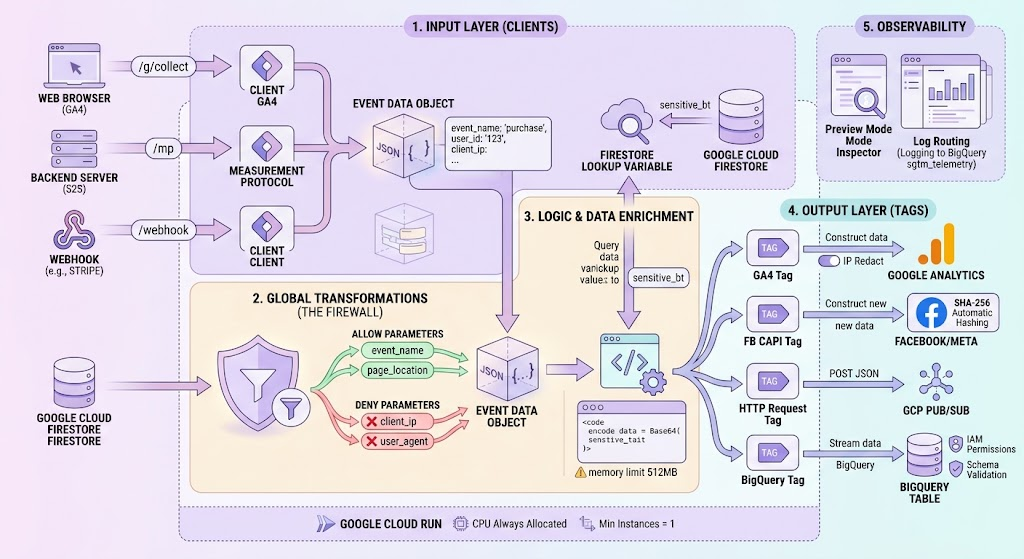
Part 1: The Event Loop (How It Works Together)
Before you click buttons in the interface, you must understand the mathematical flow of data. When data enters sGTM, it follows a strict timeline. This is the Event Loop:
- HTTP Request Arrives: A device (browser or your F# backend) sends a POST request to your Cloud Run URL (
data.yourdomain.com). - Client Claims Request: The “Clients” look at the HTTP request. If a Client recognizes the URL path (e.g.,
/g/collect), it claims the request. - Event Data Object Creation: The Client extracts data from the HTTP body and headers. It builds a flat JSON structure called the
Event Data Object. - Transformations Apply: Security rules check the
Event Data Object. They delete or change data (e.g., hash emails or drop IP addresses). - Variables Extract Data: Variables read specific keys from the
Event Data Objectand hold them in memory. - Triggers Evaluate: Logic gates check the Variables. (e.g., “Is Event Name equal to ‘purchase’?”).
- Tags Execute: If Triggers are true, Tags build new HTTP requests and send them to external APIs (Facebook, BigQuery).
- HTTP Response: The Client sends a 200 OK response back to the device.
Part 2: Clients (The Input Layer)
A Client is an HTTP listener. Its only job is to receive raw network data and translate it into the Event Data Object. If no Client claims a request, the server returns an HTTP 400 (Bad Request) error.
1. Google Analytics: GA4 (Web) Client
This is the main engine for receiving data from web browsers.
- Option: Default URL Paths
- What it is: By default, this Client listens to the path
/g/collect. - Why use it: Browsers using the GA4 web tag automatically send data to this exact path.
- When to change: Only if you want to build a custom proxy to hide tracking from advanced ad blockers.
- What it is: By default, this Client listens to the path
- Option: Compress HTTP Responses
- What it is: It zips the 200 OK response back to the browser using GZIP.
- Why use it: It saves a few milliseconds of network transfer time. Always keep this ON.
- Case Study: The Web Container sends a purchase event. The GA4 Client receives it. It automatically reads the
Cookieheader, finds_gaand_fbp, and puts them into theEvent Data Object. - Common Error: You send data from your F# backend to
/g/collectusing standard JSON. The server returns HTTP 400.- Why: The GA4 Client expects a very specific, compressed string format (URL-encoded payload), not standard JSON.
- Solution: Use the Measurement Protocol Client for backend JSON data.
2. Measurement Protocol Client
This client receives server-to-server (S2S) data directly from your backend or CRM.
- Option: Activation Path
- What it is: The specific URL your backend must hit. Example:
/mp. - Why use it: It separates browser traffic from backend traffic.
- What it is: The specific URL your backend must hit. Example:
- Case Study: Your F# backend registers a refunded order. It sends a POST request with JSON to
[https://data.yourdomain.com/mp](https://data.yourdomain.com/mp). The Client parses the JSON and creates anEvent Data Objectwith the event namerefund. - Common Error: The event arrives, but triggers do not fire.
- Why: You forgot to include the
client_idin your backend JSON. The Measurement Protocol strictly requires aclient_idorapp_instance_idto validate the payload.
- Why: You forgot to include the
3. Data Client
This is a generic client. It accepts any standard JSON payload.
- Why use it: If you want to use sGTM as a pure webhook receiver (e.g., receiving webhooks from Stripe or Shopify) without formatting them as Google Analytics hits.
Part 3: Variables (The Data Extractors)
Variables are memory pointers. They do not change data. They only extract data from the request and pass it to Tags and Triggers.
1. Event Data Variable
This is the most important variable. It extracts a specific value from the Event Data Object created by the Client.
- Option: Key Path
- What it is: The exact name of the JSON key you want to extract. Examples:
event_name,page_location,x-ga-mp1-tr(transaction revenue). - Why use it: Tags need specific data. For example, the Facebook CAPI tag needs the
Event ID. You create an Event Data Variable with the keyevent_idand map it in the Tag.
- What it is: The exact name of the JSON key you want to extract. Examples:
- Common Error: Variable returns
undefined.- Why: The key name is case-sensitive. You typed
Transaction_id, but the payload containstransaction_id.
- Why: The key name is case-sensitive. You typed
2. HTTP Request Header Variable
This variable looks directly at the raw network headers, bypassing the Event Data Object.
- Option: Header Name
- What it is: The name of the HTTP header. Examples:
User-Agent,Referer,X-Forwarded-For. - Why use it: To extract the client’s real IP address or device type for security logs or advanced matching in APIs.
- What it is: The name of the HTTP header. Examples:
3. Firestore Lookup Variable
This variable connects your sGTM to Google Cloud Firestore (NoSQL database) to enrich data.
- Option: Document Path
- What it is: The exact path in the database. Example:
users/{{User ID Variable}}. - Why use it: To pull sensitive business data. The web browser sends only the User ID. The server uses this variable to ask Firestore: “What is this user’s LTV (Lifetime Value)?”.
- What it is: The exact path in the database. Example:
- Common Error: The variable fails and slows down the server.
- Why: Your Cloud Run Service Account lacks IAM permissions (
Firestore Viewer), or the Firestore database is in a different physical region than your Cloud Run instance, causing high network latency (I/O blocking).
- Why: Your Cloud Run Service Account lacks IAM permissions (
4. Custom Sandboxed JavaScript
When standard variables cannot do the job, you write custom code.
- Mechanics: sGTM does not allow normal JavaScript. You cannot use
windowordocument. You must use strict Sandbox APIs (e.g.,require('makeBase64')). - Case Study: You need to send data to Pub/Sub. Pub/Sub requires Base64 encoded strings. You write a Sandbox Variable that takes the Event Data, turns it into a string, encodes it to Base64, and returns the result.
- Risk (Bottleneck): Memory Leaks (OOM – Out of Memory). If your script uses heavy loops, it crashes the Cloud Run container. Cloud Run limits memory to 512MB by default.
Part 4: Triggers (The Logic Gates)
Triggers are boolean functions (True or False). They define exactly when a Tag should execute.
1. Custom Event Trigger
This evaluates the event_name key in the Event Data Object.
- Option: Event Name
- What it is: A string matching rule. Example:
purchase. - Option: Fire on some Custom Events
- Why use it: To add secondary conditions. Example: Fire ONLY IF
event_nameequalspurchaseANDClient NameequalsGA4. This prevents backend webhooks from triggering web-specific tags.
- Why use it: To add secondary conditions. Example: Fire ONLY IF
- What it is: A string matching rule. Example:
2. Client Name Trigger
Fires based on which Client received the HTTP request.
- Case Study: You have a GA4 Client (for web traffic) and a Measurement Protocol Client (for backend traffic). You create a Trigger: “Fire if Client Name equals ‘Measurement Protocol'”. You attach this to a BigQuery tag to store backend logs in a separate database table.
Part 5: Tags (The Output Layer)
Tags are the final step. They construct outgoing HTTP requests and send data to third-party servers.
1. Google Analytics: GA4 Tag
Sends data to Google’s servers.
- Option: Redact visitor IP address
- What it is: A boolean switch (True/False).
- Why use it: If True, the tag drops the user’s IP address from the payload before sending it to Google. This is a strict legal requirement for GDPR compliance in Europe.
- Option: Route to a custom endpoint
- What it is: Changes the destination URL.
- Why use it: If you want to chain multiple sGTM servers together (e.g., sending data from an EU server to a US server securely).
2. Conversions API Tag (Facebook/Meta)
Converts standard Event Data into the strict Graph API format.
- Option: Action Source
- What it is: Tells Facebook where the event happened (
website,app,physical_store,system_generated). - Why use it: Crucial for ML training. If your F# backend sends a recurring subscription payment, you set this to
system_generated.
- What it is: Tells Facebook where the event happened (
- Option: User Data Processing
- Mechanics: This tag automatically searches the
Event Data Objectfor keys likeemailorphone. It automatically applies the SHA-256 cryptographic hash before sending the HTTP POST request to Facebook. You do not need to hash data manually if you use this tag.
- Mechanics: This tag automatically searches the
- Common Error: HTTP 400 (Bad Request) from Facebook.
- Why: You mapped a plain text email, but Facebook strictly demands SHA-256. Or, your API Access Token expired. Check the HTTP response body in the sGTM Preview mode to read the exact error message from Meta.
3. HTTP Request Tag
The universal sender. Used when there is no official template (e.g., for Google Cloud Pub/Sub or custom internal APIs).
- Option: HTTP Method
- Rule: Always use POST for sending JSON payloads.
- Option: Headers
- Requirement: You must define
Content-Type: application/jsonso the destination server knows how to parse the body.
- Requirement: You must define
- Option: Timeout
- Mechanics: This is the most critical engineering setting. It defines how many milliseconds the Cloud Run container will wait for the external API to answer.
- Risk: If you do not set a strict timeout (e.g., 2000 ms), and the external API crashes, your Cloud Run container stays open. Concurrency fills up (default 80 requests). Cloud Run creates hundreds of new instances. Your Google Cloud billing explodes. Always use deterministic timeouts.
4. BigQuery Tag (S2S Streaming API)
Writes data directly to a Google BigQuery table.
- Option: Project ID / Dataset ID / Table ID
- Mechanics: Uses the Cloud Run Service Account credentials to authenticate with BigQuery via the IAM system.
- Common Error: HTTP 403 (Permission Denied).
- Why: The Cloud Run Service Account does not have the
BigQuery Data EditorIAM role.
- Why: The Cloud Run Service Account does not have the
- Common Error: HTTP 400 (Invalid Schema).
- Why: The Tag tries to write a string into a BigQuery column formatted as
INT64. BigQuery strictly enforces schema types. The data row is permanently lost.
- Why: The Tag tries to write a string into a BigQuery column formatted as
Part 6: Transformations (The Security Filter)
Transformations sit between Clients and Tags. They alter the Event Data Object globally before any Tag can read it. This is your data governance firewall.
1. Allow / Deny Parameters
- Mechanics: You define a list of JSON keys.
- Deny: Deletes specific keys (e.g.,
client_ip) from the Event Data Object. - Allow: Deletes ALL keys except the ones you specifically list.
- Deny: Deletes specific keys (e.g.,
- Case Study (Privacy): You have a strict policy: no personal data goes to external marketing tags. You create an Exclusion Transformation that denies keys
email,phone, andaddress. Now, even if a marketer creates a new TikTok tag and tries to map the email, the variable returnsundefined. The data is deterministically blocked at the core level.
2. Override Parameters
- Mechanics: Replaces a value in the
Event Data Object. - Case Study: You want to standardize currency. You create a transformation that forces the
currencykey to always equalUAH, regardless of what the client sent.
Part 7: System Architecture & Cloud Run Tuning
sGTM does not exist in a vacuum. It is a Docker container on Google Cloud. You must configure the infrastructure correctly.
1. CPU Allocation
- Option: Always Allocated
- Why use it: The container never sleeps. HTTP responses take 20-50 milliseconds. This is mandatory for production.
- Option: Allocated only during request
- Why avoid it: If there is no traffic for 15 minutes, the CPU shuts down. When the next request arrives, Cloud Run takes 2-3 seconds to boot the container (Cold Start). The browser connection might timeout. Data is lost.
2. Minimum Instances
- Setting: Minimum Instances = 1 (or more for multi-region).
- Why: Ensures at least one server is always warm and ready in the RAM to accept traffic. It costs fixed money (approx. $15-20/month per instance), but guarantees zero data loss during traffic spikes.
3. Log Routing (Observability)
- Mechanics: Cloud Run generates logs for every container start, memory warning, and crash. You must route these logs from Google Cloud Logging into a BigQuery dataset (
sgtm_telemetry). - Why: To mathematically analyze latency and memory leaks. If your average request processing time goes above 500ms, your external API Tags (like Facebook) are taking too long to respond. You must reduce timeouts or optimize Sandbox JavaScript.
Here is the next part of the complete engineering manual. We now move into advanced diagnostics, safe deployment algorithms, network security, and enterprise scaling.
Part 8: Advanced Diagnostics (The Debugging Engine)
You must never guess why a tag did not fire. sGTM provides a deterministic diagnostic environment called Preview Mode. It shows you the exact memory state of the server at any millisecond.
1. The Incoming HTTP Request Inspector
When you open Preview Mode and trigger an event on your website, you see a list of requests on the left side of the screen.
- Mechanics: Click on an incoming request. You will see three tabs: Request, Event Data, and Tags.
- The Request Tab: Shows the raw HTTP data exactly as it hit Cloud Run.
- Why use it: To verify if the browser actually sent the
Cookieheader or theURL Query Parameters. If the_fbpcookie is missing here, the problem is on the frontend.
- Why use it: To verify if the browser actually sent the
- The Event Data Tab: Shows the JSON object created by the Client.
- Why use it: To verify parsing. If the frontend sent
Transaction_ID(capital T) but the Event Data Object shows it is missing, it means the GA4 Client rejected it because it strictly expectstransaction_id(lowercase).
- Why use it: To verify parsing. If the frontend sent
2. The Outgoing HTTP Request Inspector
This is where you debug external APIs (Facebook, Google Ads).
- Mechanics: Click on a Tag that fired (e.g., Facebook CAPI). Open the Request Details.
- Option: Show Headers / Show Body
- Why use it: You see the exact JSON string your Cloud Run server built and sent to Facebook. You can verify if the SHA-256 hash was applied correctly to the email.
- Common Error: HTTP 401 (Unauthorized) from the external API.
- Diagnostic Path: Look at the Response tab inside the Tag. If the API returns 401, your Access Token is invalid or expired. You must generate a new token in Facebook Business Manager and update the sGTM Variable.
- Common Error: The Tag shows “Fired”, but data is missing in BigQuery.
- Diagnostic Path: “Fired” only means sGTM sent the request. It does not mean BigQuery accepted it. Always check the HTTP Response code. If BigQuery returned HTTP 400, your JSON schema does not match the SQL table schema.
Part 9: Safe Deployment (CI/CD Pipeline)
You must never edit tags in the live production environment. A small mistake in a custom JavaScript variable can cause a memory leak and crash the Cloud Run container. You must use the Environments feature.
1. The Two-Server Architecture
You must deploy two separate Google Cloud Run services.
- Service A (Staging):
staging-data.yourdomain.com - Service B (Production):
data.yourdomain.com
2. GTM Environments Configuration
- Mechanics: Go to sGTM Admin -> Environments. Create a “Staging” environment.
- Option: Container Config String
- What it is: A unique ID string. The Staging string ends with
&env=2. The Production string has noenvparameter. - How to use: In Google Cloud Run, set the
CONTAINER_CONFIGenvironment variable in Service A to the Staging string. Set Service B to the Production string.
- What it is: A unique ID string. The Staging string ends with
- The Deployment Algorithm:
- Create a new Workspace in sGTM (e.g., “Add TikTok API”).
- Build the Tags and Variables.
- Click “Submit” and select Publish to Environment: Staging.
- Send test traffic to
staging-data.yourdomain.com. Verify the HTTP 200 responses. - Only after 100% verification, click “Publish to Environment: Live”.
- Common Error: Data duplication during testing.
- Why: You tested the Staging environment using your real Facebook Pixel ID. You polluted your real marketing database with test data.
- Solution: Use Lookup Table Variables in sGTM. Rule: “If Environment Name equals Staging, use Test Pixel ID. If Environment Name equals Live, use Real Pixel ID.”
Part 10: Security and Bot Protection
Because your sGTM runs on a public subdomain (data.yourdomain.com), anyone can send HTTP requests to it. Bots, vulnerability scanners, and competitors can spam your server. Because Cloud Run auto-scales, this spam will consume CPU time and increase your Google Cloud bill.
1. Level 1: sGTM Logic Blocks (Application Layer)
You must drop bad requests before they trigger external API Tags.
- Mechanics: Create a Trigger called
Exception: Bot Traffic. - Configuration: Rule:
HTTP Header - User-Agentmatches RegEx(bot|crawler|spider|headless). - Implementation: Add this as an Exception (Blocking Trigger) to all your Tags.
- Result: The Client parses the bot request, but no Tags fire. No data goes to BigQuery. However, Cloud Run still used a few milliseconds of CPU to process the HTTP request.
2. Level 2: Google Cloud Armor (Network Layer WAF)
For enterprise security, you must block bad traffic before it even reaches the Cloud Run container.
- Mechanics: You place a Global External HTTP(S) Load Balancer in front of Cloud Run. You attach Google Cloud Armor (Web Application Firewall) to the Load Balancer.
- Configuration: You write deterministic WAF rules.
- Rule 1: Rate Limiting. “If a single IP address sends more than 50 requests per 10 seconds, block the IP (return HTTP 429).”
- Rule 2: Geo-Blocking. “If the HTTP request comes from a country where you do not sell products, block it (return HTTP 403).”
- Result: The Load Balancer rejects the bot traffic. The traffic never hits your Cloud Run container. Your Cloud Run CPU usage stays at zero. Your bill is protected.
Part 11: Data Loss Prevention (Dead Letter Queues)
In system engineering, you must design for failure. External APIs (Facebook, TikTok) will experience downtime. If sGTM cannot deliver the data, it drops it. You need a fallback mechanism.
1. The Pub/Sub Amortizer
As discussed in the architecture design, you do not write directly to BigQuery. You write to Google Cloud Pub/Sub.
- Mechanics: sGTM sends the
Event Data Objectto a Pub/Sub Topic. Pub/Sub acknowledges receipt in 10-20 milliseconds. - Option: Dead Letter Queue (DLQ)
- What it is: A secondary Pub/Sub topic.
- Why use it: The Pub/Sub subscription tries to insert the data into BigQuery. If BigQuery rejects the data (e.g., the JSON schema is broken, or a string is sent instead of an integer), Pub/Sub attempts to retry 5 times. If it fails 5 times, Pub/Sub moves the JSON payload to the Dead Letter Queue.
- Case Study: A frontend developer accidentally changes the
valueparameter from a Number (1500.00) to a String ("1500.00"). BigQuery rejects it. The DLQ saves the payload. - Resolution: You write a simple Cloud Function (or an F# script) that reads the DLQ, converts the string back to a number, and pushes it back into the main pipeline. Zero data loss.
Part 12: Migration Checklist (The Final Rules)
When moving from Web GTM to Server-Side GTM, follow this strict checklist to guarantee system stability:
- Map the Event ID: Ensure every frontend conversion event generates a unique
event_idand passes it to BOTH the Web Pixel (for deduplication) and the GA4 Transport Tag. - Verify First-Party Domain: Check your DNS records. Ensure
data.yourdomain.comresolves correctly without SSL errors. Do not use Cloudflare Proxy (orange cloud) for this specific subdomain. - Hash PII Early: Decide where hashing happens. If you send plain text emails to sGTM, ensure the sGTM Tag is configured to hash them. Never send plain text emails to Pub/Sub or BigQuery without encryption.
- Enforce Timeouts: Check every Custom Template and HTTP Request tag. Ensure a hard timeout (e.g., 2000ms) is set. Do not let Cloud Run wait infinitely for external systems.
- Clean the Frontend: Remove all legacy scripts (Facebook, TikTok, Owox) from the Web GTM container ONLY AFTER you have verified that the Server tags are processing data correctly via the Server Preview Mode
Here is the next part of the engineering manual. This section covers privacy mechanics (Consent Mode), Custom Template engineering (Sandboxed JS), advanced cookie manipulation, and strict cost mathematics.
Part 13: Privacy Engineering and Consent Mode v2
In modern data architecture, you cannot track users who say “No” to cookie banners. Google requires Consent Mode v2. sGTM is the ultimate firewall to enforce these privacy rules deterministically.
1. The Physics of Consent Data
When a user clicks “Accept” or “Deny” on the frontend, the Web GTM sends this decision to sGTM.
- Mechanics: The GA4 web tag automatically attaches special parameters to the HTTP request:
gcs(Google Consent Status) andgcd(Google Consent Default). - The Client Parsing: The GA4 Client on Cloud Run reads
gcsandgcd. It updates the internal state of theEvent Data Object. It creates flags likead_storage = grantedoranalytics_storage = denied.
2. Advanced vs. Basic Consent on the Server
You must choose an architectural path for users who deny consent.
- Basic Consent (Hard Block):
- How it works: If the user denies consent, the Web GTM does not send the HTTP request to Cloud Run.
- Result: 100% privacy, but you lose all data, including anonymous page views.
- Advanced Consent (Cookieless Pings):
- How it works: If the user denies consent, the Web GTM still sends a request to Cloud Run, but it deletes the
client_idand all cookies. - Server Action: The sGTM receives an anonymous “ping”. The server routes this anonymous data to Google Analytics. Google uses Machine Learning to model the missing data.
- How it works: If the user denies consent, the Web GTM still sends a request to Cloud Run, but it deletes the
3. Enforcing Consent on External Tags (Facebook/TikTok)
Google tags handle consent automatically. But Facebook and TikTok tags do not. You must engineer the block manually.
- Mechanics: You create a Trigger called
Consent Denied. - Configuration: Rule:
Event Data Variable - analytics_storageequalsdenied. - Implementation: Add this as an Exception (Blocking Trigger) to your Facebook CAPI and TikTok API tags.
- Result: If a user denies cookies, the anonymous ping arrives at sGTM. The GA4 tag fires (anonymously). The Facebook tag is hard-blocked and does not fire. You achieve 100% legal compliance.
Part 14: Custom Template Engineering (Sandboxed JS)
When you need to send data to a system that has no official tag (for example, a local Ukrainian SMS gateway or a custom C#/F# microservice), you must write a Custom Tag Template.
1. The Sandbox Limitations
You cannot write standard Node.js code. The sandbox is a strict security prison.
- Rule 1: No external libraries. You cannot use
npm install. - Rule 2: No global variables. You cannot use
Date.now()orMath.random()directly. - Rule 3: Explicit Permissions. If your code tries to read a cookie, but you did not check the “Read Cookie” permission box in the Template UI, the sandbox kills the script instantly.
2. Essential Sandbox APIs
To write code, you must import Google’s secure APIs.
require('sendHttpRequest'): The only allowed way to send data out.require('getAllEventData'): The only allowed way to read the payload.require('setCookie'): The only allowed way to modify browser state.require('getTimestampMillis'): The only allowed way to get the current time.
3. Case Study: Building a Custom Webhook Tag
Goal: Send a JSON alert to your F# backend when an order exceeds 10,000 UAH.
- Create Template: Go to Templates -> New Tag.
- Permissions: Allow
sendHttpRequestto[https://api.yourdomain.com/alert](https://api.yourdomain.com/alert). Allow reading Event Data. - The Code:
JavaScript
const sendHttpRequest = require('sendHttpRequest');
const getAllEventData = require('getAllEventData');
const JSON = require('JSON');

// 1. Get the data
const eventData = getAllEventData();
const orderValue = eventData.x_ga_mp1_tr; // GA4 transaction revenue

// 2. Logic Gate
if (orderValue >= 10000) {
  const payload = JSON.stringify({
    order_id: eventData.transaction_id,
    amount: orderValue
  });

  // 3. HTTP Transport with strict timeout
  sendHttpRequest('https://api.yourdomain.com/alert', (statusCode, headers, body) => {
    if (statusCode >= 200 && statusCode < 300) {
      data.gtmOnSuccess(); // Tell sGTM the tag finished successfully
    } else {
      data.gtmOnFailure(); // Tell sGTM the tag failed
    }
  }, {
    method: 'POST',
    headers: { 'Content-Type': 'application/json' },
    timeout: 1500 // 1.5 seconds maximum
  }, payload);
} else {
  data.gtmOnSuccess(); // End process if value is too low
}
- Common Error: The tag fails silently.
- Why: You forgot to call
data.gtmOnSuccess()ordata.gtmOnFailure(). The sandbox waits for the timeout (e.g., 1500ms) and then kills the container process. Always close your callbacks.
- Why: You forgot to call
Part 15: Advanced Cookie Manipulation (ITP Armor)
Apple ITP (Intelligent Tracking Prevention) deletes JavaScript cookies (created by document.cookie) after 1 to 7 days. This breaks long-term analytics. sGTM solves this using HTTP-only cookies.
1. The Physics of HTTP Cookies
When sGTM sends the 200 OK response back to the browser, it can attach a Set-Cookie header. Because your Cloud Run server is on the same domain (data.eva.ua) as the website (eva.ua), the browser accepts this as a First-Party Server Cookie. Safari ITP does not delete Server Cookies. They live for up to 2 years.
2. Upgrading the GA4 Client Cookie
- Mechanics: In the sGTM GA4 Client settings, there is an option called FPID (First Party Identifier).
- How it works: Instead of trusting the
_gacookie generated by the browser’s JavaScript, the GA4 Client generates its own ID on the server. It sends this ID back to the browser in theSet-Cookieheader asFPID. - Option: HttpOnly Flag
- What it is: A security setting for the cookie.
- Why use it: If you check
HttpOnly, the browser hides this cookie from JavaScript. A hacker who injects a malicious script (XSS attack) into your website cannot steal theFPIDcookie. Only the network layer can see it.
Part 16: Cost Mathematics and Traffic Optimization
Cloud Run billing is calculated mathematically. If you do not optimize the data payload, a site with 10 million events per month will waste hundreds of dollars.
1. The Egress Cost Bottleneck
Google Cloud gives you free incoming data (Ingress). But you pay for outgoing data (Egress) when it leaves the Google Cloud network (e.g., sending data to Facebook’s servers).
- The Math: If 1 event payload is 10 Kilobytes (KB), and you send it to Facebook, TikTok, and a CRM. That is 30 KB of Egress per event.
- 1,000,000 events * 30 KB = 30 Gigabytes of Egress.
2. Optimization Algorithm (Payload Stripping)
You must use a Transformation rule to delete useless data before Tags send it.
- Useless Data Examples:
dl(Document Location URL) often contains 500 characters of UTM parameters. Facebook does not need this. Strip it.user_agentcan be 200 characters long.
- Action: Create a Transformation ->
Exclude Parameters. Delete long string variables that your target API does not require. You can reduce a 10 KB payload to 2 KB. This cuts your Google Cloud network bill by 80%.
3. Batching (The Ultimate Efficiency)
Instead of sending 100 separate HTTP requests to BigQuery for 100 events, you should send 1 HTTP request containing an array of 100 events.
- Mechanics: Some sGTM tags (like the BigQuery tag or custom HTTP tags) support Batching.
- How it works: You configure the tag to wait. Example: “Wait until you collect 10 events, or wait for 5 seconds, whichever comes first. Then send them together.”
- Result: Cloud Run opens 1 network connection instead of 10. This massively reduces CPU time and network overhead, lowering costs and preventing API rate limits (HTTP 429 errors).
Part 17: Summary of the Engineering Standard
To run a professional, enterprise-grade Server-Side GTM architecture, you must follow these absolute rules:
- No Guessing: Data must be deterministic. If an ID is missing, drop the event. Do not invent data.
- Protect the Main Thread: The web browser must do the absolute minimum work (One GA4 transport tag only).
- Isolate the Business Logic: Macro-conversions (Purchases) must be sent from your backend (F#/C#). Micro-conversions (Views/Clicks) must flow through sGTM.
- Enforce Strict Timeouts: Every external HTTP request from sGTM must die if it takes longer than 1500-2000 milliseconds. Protect your concurrency.
- Test in Staging: Never deploy a new Sandbox JavaScript tag to the production Cloud Run instance without validating it in the Staging Environment first.
This architecture guarantees data parity, bypasses ad-blockers, extends cookie life against Apple ITP, secures PII through SHA-256 hashing, and protects your core database from traffic spikes.
Here is the next and final part of the complete engineering manual. We will now dive into advanced data transformation without coding, complex Google Cloud network architecture (Static IPs), handling offline CRM data, and Site Reliability Engineering (SRE) for sGTM.
Part 18: Advanced Variables (No-Code Data Engineering)
While Sandboxed JavaScript is powerful, you should avoid it when possible to save CPU cycles. sGTM provides built-in, highly optimized variables written in core C++/Go by Google. They execute instantly without memory leak risks.
1. Regex Table Variable (Pattern Matching)
This variable evaluates an input string using Regular Expressions and outputs a new string based on the match.
- Mechanics: You define an input (e.g.,
{{HTTP Header - User-Agent}}). You write a Regex pattern. If it matches, it returns a specific value. - Case Study (Device Classification): You want to tag events as
MobileorDesktopfor BigQuery, but the browser only sends a long User-Agent string.- Input: User-Agent.
- Pattern 1:
(?i)(iphone|android|mobile)-> Output:Mobile. - Pattern 2:
(.*)(Catch-all) -> Output:Desktop.
- Common Error: The variable causes high CPU load.
- Why: You wrote a poorly optimized Regex pattern (Catastrophic Backtracking). Always use simple, bounded Regex patterns in high-traffic environments.
2. Lookup Table Variable (Exact Match Routing)
This is a high-speed Switch/Case statement. It looks for an exact string match.
- Case Study (Multi-Region Routing): You operate in Ukraine (eva.ua) and Poland (eva.pl). You want to send data to different Google Analytics properties.
- Input:
{{Event Data - page_hostname}}. - Match 1:
eva.ua-> Output:G-UA123456. - Match 2:
eva.pl-> Output:G-PL987654.
- Input:
- Implementation: You put this Variable inside your GA4 Server Tag in the “Measurement ID” field. The server dynamically routes the data to the correct Google database in less than 1 millisecond.
3. SHA-256 Hash Variable (Manual Cryptography)
While the Facebook CAPI tag hashes data automatically, some custom APIs or HTTP Request Tags do not. You must hash the PII manually before sending it to the network.
- Mechanics: Takes an input string, standardizes it (lowercase, trims spaces), and converts it into a 64-character hexadecimal hash.
- Common Error: The external API rejects the hash.
- Why: The input string had a capital letter or an invisible space at the end (e.g.,
" User@eva.ua "). The SHA-256 hash of"User@eva.ua"is completely different from the hash of"user@eva.ua". - Solution: Always ensure the “Trim whitespace” and “Convert to lowercase” checkboxes are ON in the variable settings.
- Why: The input string had a capital letter or an invisible space at the end (e.g.,
Part 19: Google Cloud Network Architecture (VPC & Static IPs)
By default, Cloud Run is a Serverless product. This means every time it scales up, Google assigns it a random IP address from a pool of millions of Google IPs. This creates a critical architectural problem for enterprise integrations.
1. The Static IP Problem
- The Scenario: You need to send server-side events from sGTM to a strict financial API, an old CRM, or an SMS gateway.
- The Block: Their firewall (WAF) blocks all traffic unless the IP address is explicitly whitelisted. Because Cloud Run IPs change every minute, the external API returns
HTTP 403 Forbidden.
2. The Solution: Serverless VPC Access & Cloud NAT
To give your sGTM a permanent, static outbound IP address, you must build a Virtual Private Cloud (VPC) network. This requires three GCP components:
- VPC Connector: You attach this to your Cloud Run service. It acts as a bridge, forcing all outgoing HTTP requests from sGTM to flow into your private Google Cloud network instead of the public internet.
- Cloud Router & Cloud NAT (Network Address Translation): You set up a NAT gateway inside your VPC. All traffic from the VPC Connector goes to the NAT.
- Static External IP: You reserve a permanent IP address in Google Cloud and assign it to the Cloud NAT.
- Result: Cloud Run processes the event -> Sends it through the VPC -> Cloud NAT attaches your Static IP -> The external API sees your whitelisted IP and accepts the payload (HTTP 200).
- Risk: Cost. A Cloud NAT and VPC Connector cost a minimum of ~$30-40 per month just to stay active, regardless of traffic volume. You must add this to your infrastructure budget.
Part 20: Offline Conversions (CRM to sGTM)
Not all events happen in the browser. If a customer buys a product today, but returns it 14 days later, the browser is closed. Your F# backend must report the refund event to sGTM.
1. The Primary Key Rule
To send an offline event, you cannot just send the email. Google Analytics requires the exact client_id (cookie) or session_id that was active during the original purchase.
- Architecture Requirement: When your database records the
purchase, you must save thega_client_idin your SQL database next to the order data.
2. The Backend Payload (F# to sGTM)
When the refund happens, your backend constructs an HTTP POST request to your sGTM Measurement Protocol Client ([https://data.eva.ua/mp](https://data.eva.ua/mp)).
JSON
{
  "client_id": "123456789.1691234567",
  "events": [
    {
      "name": "refund",
      "params": {
        "transaction_id": "ORD-9912",
        "currency": "UAH",
        "value": 1500.00,
        "items": [
          {
            "item_id": "SKU_77182",
            "quantity": 1
          }
        ]
      }
    }
  ]
}
3. Handling in sGTM
- The Measurement Protocol Client parses this JSON.
- A Trigger fires (
Event Name = refund). - The GA4 Tag executes, sending the refund to Google Analytics.
- The Facebook CAPI Tag executes, sending the refund to Facebook (to adjust your ROAS metrics down).
Part 21: Site Reliability Engineering (SRE) for sGTM
A server-side tracking system is a critical production infrastructure. If it fails, your marketing stops, and data is lost forever. You cannot rely on logging into the interface to check if it works. You must set up automated observability.
1. Setting up Google Cloud Monitoring (Alerts)
You must create automated alerts in Google Cloud Metrics Explorer.
- Alert 1: Container Crash (HTTP 5xx)
- Metric:
[run.googleapis.com/request_count](https://run.googleapis.com/request_count) - Filter:
response_code_class = "500" - Condition: If HTTP 5xx errors > 1% of total traffic for 5 minutes, trigger an alert.
- Why: This means your Cloud Run container is running out of memory (OOM), or a custom Sandboxed JS variable has a fatal syntax error causing the container to crash.
- Metric:
- Alert 2: High Latency (I/O Blocking)
- Metric:
[run.googleapis.com/request_latencies](https://run.googleapis.com/request_latencies) - Condition: If 95th percentile latency (p95) > 1500 milliseconds for 10 minutes.
- Why: This means an external API (like Facebook) is responding very slowly. Because Node.js is single-threaded, waiting for Facebook blocks sGTM from processing new events. This leads to dropped requests. You must lower your tag timeouts immediately.
- Metric:
- Alert 3: CPU Utilization
- Metric:
[run.googleapis.com/container/cpu/utilization](https://run.googleapis.com/container/cpu/utilization) - Condition: If CPU > 80% for 5 minutes.
- Why: You have a sudden traffic spike (e.g., a massive Black Friday ad campaign). Cloud Run normally auto-scales, but if you set the “Maximum Instances” limit too low in Cloud Run settings, the CPUs will choke.
- Metric:
2. The Incident Response Protocol
If you receive a Slack alert that sGTM is returning 500 errors, your diagnostic pipeline must be deterministic:
- Do not touch Web GTM. The problem is on the server.
- Open Google Cloud Logging. Query:
resource.type="cloud_run_revision" severity>=ERROR. - Look at the exact error trace. If it says
Memory limit exceeded, increase the Cloud Run memory limit from 512MB to 1GB and redeploy. - If the error trace points to a specific Sandbox Template (e.g.,
Error in custom template execution), go to the sGTM Admin, switch to the Staging Workspace, pause the broken Tag, and publish the fix.
Final Summary: The Pipeline Philosophy
You now have the complete blueprint for Server-Side GTM. Remember the core philosophy you stated earlier in our conversations: Logic, Facts, Arguments, and Strict Engineering Discipline.
- Web GTM is now a dumb pipe. It collects context and sends one stream.
- sGTM is the intelligent router. It cleans, transforms, hashes, and duplicates the data.
- Your F# Backend is the absolute truth. It bypasses the browser for financial transactions to guarantee zero data loss.
By applying deterministic algorithms, strict timeouts, DLQs (Dead Letter Queues), and proper Cloud Run architecture, you eliminate marketing fluff. You transform analytics from a fragile browser script into a robust, enterprise-grade data pipeline.
The Migration Pathology Guide (Troubleshooting & Problem Resolution)
When you migrate an e-commerce platform from Web GTM to Server-Side GTM, things will break if the transition is not managed with strict engineering discipline.
This guide breaks down every major technical failure encountered during sGTM deployment, explains the underlying root cause (the “why”), and provides a deterministic, step-by-step resolution algorithm (the “how”).
Problem 1: Spike in “Direct / None” Traffic (Session Disruption & Lost Attribution)
1. Context and Symptoms
A few days after launching sGTM, your Google Analytics 4 (GA4) reports show a massive spike in Direct / None traffic (often an increase of 20% to 50%). At the same time, revenue attributed to Paid Search (Google Ads), Paid Social (Facebook), and Organic Search drops artificially.
2. Root Cause Analysis
This is a classic Session Stitching Failure. GA4 determines traffic channels by reading the session_id and the initial entry parameters (page_location containing UTM parameters or page_referrer). Attribution breaks due to three technical reasons:
- Cookie Domain Mismatch: The Web GTM tag creates the
_gacookie on the root domain (eva.ua). However, the HTTP request sent todata.eva.uadoes not receive or send the cookie properly because the cookie domain scope was set incorrectly (e.g., missing the leading dot.eva.ua). The server treats every page view as a brand-new user with a newclient_id. - Missing Page Referrer / Location Header: The server-side GA4 Tag sends an HTTP request to Google’s servers without forwarding the client’s original
page_locationorpage_referrer. Google cannot identify where the user came from and defaults the session toDirect / None. - Cross-Subdomain Link Disruption: If the user moves from
eva.uato a checkout subdomain likecheckout.eva.ua, and sGTM does not pass the_glcross-domain linker parameter, the original session terminates and a new direct session begins.
3. Deterministic Resolution Algorithm
- Step 1 (Fix Cookie Domain Scoping): In Web GTM, open your GA4 Configuration Tag. Go to Fields to Set -> Add
cookie_domain-> Set value toauto. This forces the browser to set the_gacookie at the highest possible domain level (.eva.ua), making it accessible to all subdomains. - Step 2 (Forward Location Headers in sGTM): In Server GTM, open the GA4 Server Tag. Under Event Parameters, verify that
page_locationandpage_referrerare mapped directly to{{Event Data - page_location}}and{{Event Data - page_referrer}}. - Step 3 (Audit the Event Data Object): Open sGTM Preview Mode. Click on an incoming
page_viewevent. Open the Event Data tab. Verify thatclient_idandsession_idremain identical as you navigate across different pages of the website.
Problem 2: Double Counting and Duplicate Conversions
1. Context and Symptoms
Your Facebook Ads Manager or Google Ads dashboard reports twice as many purchases as your actual database (e.g., 200 orders reported in Facebook when the database recorded only 100).
[ Web Pixel ] ──────> Purchase Event (ID: 9912) ─────┐
                                                     ├──> [ Meta Engine ] ──> Duplicate Detected?
[ Server CAPI ] ────> Purchase Event (No ID)   ─────┘    (NO! Recorded as 2 Purchases)
2. Root Cause Analysis
This failure occurs when running a Redundant Setup (Web Pixel + Server CAPI) without proper deduplication keys, or when the frontend and backend fire the same event simultaneously.
- Mismatched or Missing
event_id: The Web Facebook Pixel sends aPurchaseevent. The Server Facebook CAPI Tag sends the samePurchaseevent. However, theevent_idparameter is missing in one of the channels, or they do not match (e.g., Web sendsORD_9912while Server sends9912). Facebook’s deduplication engine requires an exact string match forevent_name+event_idwithin 48 hours. Without this match, Meta counts both events. - Dual-Firing Architecture: The Web GTM container fires a
purchaseevent on the “Thank You Page”, while your F#/C# Backend also sends apurchaseevent via Measurement Protocol / CAPI when the payment gateway callback executes.
3. Deterministic Resolution Algorithm
- Step 1 (Enforce Single Event ID Generation): Create a central JavaScript function on the website frontend that generates a unique UUID before any tracking tag fires.
JavaScript
// Generate single event_id on checkout completion
window.currentPurchaseEventId = 'ORD_' + Date.now() + '_' + Math.floor(Math.random() * 100000);

dataLayer.push({
  'event': 'purchase',
  'event_id': window.currentPurchaseEventId, // Must be passed to BOTH Web and Server
  'ecommerce': { 'transaction_id': '9912', 'value': 1500.00 }
});
- Step 2 (Map Event ID in All Tags):
- In Web GTM, open the Meta Pixel Tag -> Add Event ID field -> Set to
{{dataLayer - event_id}}. - In Server GTM, open the Meta CAPI Tag -> Add Event ID field -> Set to
{{Event Data - event_id}}.
- In Web GTM, open the Meta Pixel Tag -> Add Event ID field -> Set to
- Step 3 (Hard Block Frontend Purchase if Backend is Active): If you are implementing the Rich S2S pattern (where the F# Backend handles transactions), completely delete the
purchasetag from Web GTM. The Web container must only send micro-conversions (add_to_cart,view_item).
Problem 3: Sudden Drop in Event Match Quality (EMQ Collapse)
1. Context and Symptoms
In the Meta Events Manager dashboard, your Event Match Quality (EMQ) score for the Purchase or AddToCart event drops from 8.0+ (Good) down to 2.0 – 4.0 (Poor). Advertisers notice that campaign targeting becomes imprecise and cost-per-acquisition (CPA) increases.
2. Root Cause Analysis
Event Match Quality measures how well the data you send matches real Facebook/Instagram user accounts. EMQ collapses due to three primary causes:
- Stripped HTTP Headers: The sGTM server is hosted behind a proxy or load balancer that drops the original client parameters. Meta receives the Cloud Run server’s IP address (e.g., a Google data center IP in Belgium) and User-Agent (
Node.js/GTM), rather than the actual user’s mobile browser IP and User-Agent. - Unformatted PII Hashing: The backend or sGTM passes an email address like
" User@Eva.UA "directly into the SHA-256 function without normalization. The resulting hash (b0a6...) does not match Meta’s pre-computed hash of"user@eva.ua"(9f86...). - Missing
_fbpand_fbcCookies: sGTM is deployed on an isolated third-party domain (e.g.,eva-tracking.cominstead ofdata.eva.ua). The browser blocks third-party cookies, preventing the sGTM server from reading_fbp(Browser ID) and_fbc(Click ID) from HTTP headers.
3. Deterministic Resolution Algorithm
- Step 1 (Forward True Client IP and User-Agent): In sGTM, ensure the Meta CAPI Tag is configured to read headers from the request. In the CAPI Tag settings, check Client IP Address -> Set to
{{HTTP Header - X-Forwarded-For}}. Check User Agent -> Set to{{HTTP Header - User-Agent}}. - Step 2 (Standardize PII Prior to Hashing): Ensure all email and phone fields undergo string normalization before hitting the SHA-256 algorithm.
JavaScript
// Sanitization logic inside Sandboxed JS Variable or Backend
function normalizeEmail(rawEmail) {
  if (!rawEmail) return null;
  // 1. Convert to lowercase
  // 2. Remove leading/trailing whitespace
  return rawEmail.trim().toLowerCase();
}
- Step 3 (Migrate to First-Party Subdomain): Ensure sGTM runs on
data.eva.ua(or uses an NGINX reverse proxy oneva.ua/metrics). This guarantees that the browser automatically attaches all first-party cookies (_fbp,_fbc,_gcl_aw) to every HTTP request header.
Problem 4: Silent Data Loss and HTTP 4xx/5xx API Failures
1. Context and Symptoms
Web GTM shows that the GA4 Transport Tag is sending data successfully (HTTP 200). However, inside Facebook, TikTok, or BigQuery, zero events appear. There are no error messages on the website.
2. Root Cause Analysis
This is Silent Server-Side Failure. The browser successfully delivers the event to Cloud Run (hence the HTTP 200 response to the user). However, once inside Cloud Run, the outbound server tags fail silently when trying to talk to third-party APIs.
| HTTP Status Code | Root Cause | System Affected |
| 400 Bad Request | Missing required parameters (e.g., TikTok API payload missing event_id or invalid currency code like UAH sent as uah). | TikTok / Meta CAPI |
| 401 Unauthorized | Expired API Access Token or revoked OAuth credentials. | Meta CAPI / Google Ads API |
| 403 Forbidden | Cloud Run Service Account lacks IAM roles (e.g., missing BigQuery Data Editor). | BigQuery Streaming |
| 429 Too Many Requests | External API rate limits exceeded due to unbatched high-volume traffic. | Custom Webhooks / CRM |
| 504 Gateway Timeout | External API took longer than sGTM’s execution timeout (e.g., >2000ms), causing the server container to drop the socket. | All Outbound Tags |
3. Deterministic Resolution Algorithm
- Step 1 (Inspect Outbound Requests in sGTM Preview):
- Open sGTM Preview Mode.
- Trigger the failing event.
- Click the failing Tag (e.g., TikTok Events API).
- Open the Request Details -> Response Body tab. Read the exact JSON error returned by the API (e.g.,
{"code": 40001, "message": "Invalid Access Token"}).
JSON
// Example of raw error body hidden inside sGTM Response Tab
{
  "error": {
    "message": "Invalid parameter: user_data.em must be a valid SHA256 hashed string.",
    "type": "OAuthException",
    "code": 100
  }
}
- Step 2 (Enable Cloud Run Logging for Errors): Set an environment variable in Cloud Run:
LOGGING_LEVEL = debug. This forces sGTM to write full HTTP error stack traces to Google Cloud Logging. - Step 3 (Set Hard Timeouts and Fallbacks): On every Custom Template or HTTP Request Tag, set a hard timeout of
1500ms. Route all failed payloads to a Pub/Sub Dead Letter Queue (DLQ) for asynchronous retry analysis.
Problem 5: CORS (Cross-Origin Resource Sharing) and Network Blocking Errors
1. Context and Symptoms
When testing the website, the browser console is filled with red errors: Access to fetch at '[https://data.eva.ua/g/collect](https://data.eva.ua/g/collect)' from origin '[https://eva.ua](https://eva.ua)' has been blocked by CORS policy: No 'Access-Control-Allow-Origin' header is present on the requested resource. No data leaves the browser.
[ Browser (eva.ua) ] ─── OPTIONS Preflight Request ───> [ sGTM (data.eva.ua) ]
                     <── HTTP 403 (No CORS Header) ────
(Browser Kills the Connection - Zero Tracking Sent)
2. Root Cause Analysis
- Missing CORS Preflight Handshake: When JavaScript (via
fetchorXMLHttpRequest) sends a POST request with custom headers or JSON payloads to a different domain/subdomain, the browser sends an HTTPOPTIONSpreflight request first. If sGTM or the load balancer does not explicitly respond toOPTIONSwith appropriateAccess-Control-Allow-*headers, the browser drops the main request. - Ad-Blocker Subdomain Flagging: Ad-blockers (like uBlock Origin or Brave Shield) detect that
data.eva.uaresolves to a known cloud hosting IP (Google Cloud Run) and blocks all network connections to/g/collectby matching path patterns.
3. Deterministic Resolution Algorithm
- Step 1 (Enable CORS in sGTM Clients): In sGTM, open your custom Clients or GA4 Client. Ensure the setting Enable CORS Headers is checked. Set Access-Control-Allow-Origin to
[https://eva.ua](https://eva.ua)(or*if multi-domain). - Step 2 (Configure CORS Headers at Reverse Proxy / NGINX): If using NGINX, inject CORS headers directly at the edge layer:
Nginx
# NGINX Edge CORS Configuration for sGTM
location /metrics/ {
    if ($request_method = 'OPTIONS') {
        add_header 'Access-Control-Allow-Origin' 'https://eva.ua' always;
        add_header 'Access-Control-Allow-Methods' 'GET, POST, OPTIONS' always;
        add_header 'Access-Control-Allow-Headers' 'Content-Type, User-Agent, Cookie' always;
        add_header 'Access-Control-Allow-Credentials' 'true' always;
        add_header 'Content-Length' 0;
        add_header 'Content-Type' 'text/plain charset=UTF-8';
        return 204;
      }
}
- Step 3 (Obfuscate Tracking Paths): Rename public tracking paths. Instead of
/g/collect, configure your client and web tags to use custom paths like/app-telemetry/v1.
Problem 6: BigQuery Streaming Failures and Schema Rejections
1. Context and Symptoms
The BigQuery Tag in sGTM fires without throwing visible errors, but whole rows are missing from your raw_events table in BigQuery. When checking GCP Metrics, [bigquery.googleapis.com/streaming_inserted_rows](https://bigquery.googleapis.com/streaming_inserted_rows) shows a high failure rate.
2. Root Cause Analysis
BigQuery streaming ingestion is strictly typed. Schema failure happens due to Schema Drift:
[ sGTM Payload ] ──────> price: "1500.00" (STRING) ──┐
                                                    ├──> [ BigQuery Engine ] ──> TYPE MISMATCH ERROR
[ BigQuery Schema ] ───> price: FLOAT64            ──┘    (Row Permanently Dropped)
- Data Type Incompatibility: The frontend sends a price as a String (
"1500.00"), but the BigQuery table schema defines the column asFLOAT64orNUMERIC. - Unescaped Nested Objects: The frontend sends an
itemsarray containing unexpected custom parameters (e.g.,items[0].discount_code = ["SUMMER", "VIP"]as an array), but BigQuery expects a flatSTRINGcolumn. - Missing Mandatory Partition Key: The BigQuery table requires a
_PARTITIONTIMEorevent_datecolumn, but sGTM does not pass it in the insert payload.
3. Deterministic Resolution Algorithm
- Step 1 (Cast Data Types in Sandboxed JS / Transformations): Use an sGTM Transformation to enforce explicit type casting before sending payloads to BigQuery.
JavaScript
// Force Type Coercion for Financial Metrics
var rawPrice = getEventData('ecommerce.value');
var numericPrice = typeof rawPrice === 'string' ? parseFloat(rawPrice) : rawPrice;
- Step 2 (Enable “Auto-Detect Schema” in BigQuery Tag): In the sGTM BigQuery Tag settings, check Auto-Detect Schema. This allows BigQuery to automatically alter the table schema when new fields are introduced, rather than rejecting the entire row.
- Step 3 (Buffer Through GCP Pub/Sub): Never stream high-volume, unvalidated JSON directly from sGTM to BigQuery. Route sGTM -> Pub/Sub -> Dataflow / Cloud Function -> BigQuery. The Pub/Sub queue buffers data during schema updates, ensuring zero row loss.
Problem 7: Cloud Run Latency Spikes and Memory Exhaustion (OOM)
1. Context and Symptoms
During peak traffic hours, page load times slow down, sGTM response latency spikes from 30ms to 3000ms+, and the Google Cloud Run console displays Memory limit exceeded warnings accompanied by HTTP 503 errors.
[ High Concurrency ] ──> [ 512MB RAM Container ] ──> Node.js Event Loop Blocked ──> OOM Crash (HTTP 503)
2. Root Cause Analysis
- Memory Leaks in Custom Sandboxed JS Templates: A custom variable or tag template contains an unoptimized loop or global state array that grows with every incoming request without being garbage-collected.
- Unbounded Concurrency Settings: Cloud Run is configured with a maximum concurrency of
80requests per instance, but memory is set to the minimum512MB. When 80 concurrent requests process heavy JSON payloads simultaneously, Node.js exceeds the memory allocation, causing an Out-Of-Memory (OOM) container crash. - Blocking Outbound HTTP Requests: Custom HTTP tags do not specify execution timeouts. When an external API becomes slow, sGTM keeps hundreds of HTTP sockets open, consuming all available system memory.
3. Deterministic Resolution Algorithm
- Step 1 (Optimize Cloud Run Hardware Allocation): Increase container RAM to a minimum of 1GB or 2GB per instance, and set CPU to 1 vCPU (Always Allocated).
- Step 2 (Tune Concurrency Limits): Lower the maximum concurrency setting in Cloud Run from
80down to40. This forces Cloud Run to scale out horizontally (creating new containers) before an individual container runs out of RAM.
Bash
# GCP CLI Command to Update Cloud Run Concurrency and Memory
gcloud run deploy sgtm-production \
  --image gcr.io/cloud-tagging-101/gtm-cloud-image:latest \
  --concurrency 40 \
  --memory 1Gi \
  --cpu 1 \
  --min-instances 1 \
  --no-cpu-throttling
- Step 3 (Enforce Hard Timeouts on All Templates): Audit all Custom Tag Templates. Ensure every
sendHttpRequestcall contains an explicit timeout option set to1500ms max.
Problem 8: Consent Mode Leakage and Regulatory Non-Compliance
1. Context and Symptoms
A user clicks “Reject All” on the website’s cookie banner (CMP). However, when inspecting the network traffic in sGTM, personal user data (unhashed emails, phone numbers) and tracking events continue to stream directly into Facebook CAPI and TikTok API. This violates GDPR, ePrivacy Directive, and local privacy laws.
2. Root Cause Analysis
- Lack of Server-Side Blocking Triggers: The Web GTM container passes the event to sGTM because the transport tag (GA4) was allowed to run in “Advanced Consent Mode” (sending cookieless pings). However, sGTM does not automatically block third-party tags (Facebook, TikTok) unless you build explicit blocking logic on the server.
- Unparsed Consent Signals: The GA4 Client receives the consent state string (
gcs=G100), but custom server variables are not configured to read this key from the Event Data Object.
3. Deterministic Resolution Algorithm
- Step 1 (Extract Consent States in sGTM): Create an Event Data Variable in sGTM named
{{Event Data - x-ga-gcs}}.G100= Denied both Ad Storage and Analytics Storage.G111= Granted both Ad Storage and Analytics Storage.G110= Granted Ad Storage, Denied Analytics Storage.
- Step 2 (Build Universal Blocking Trigger): Create a Trigger named
Block Marketing - No Ad Consent.- Type: Custom Event (Regex match
.*). - Condition:
{{Event Data - x-ga-gcs}}matches RegExG1.0. (This explicitly checks if Ad Storage was denied).
- Type: Custom Event (Regex match
[ Incoming Request (gcs = G100) ] ──> [ GA4 Client ] ──> Event Data (x-ga-gcs: G100)
                                                               │
                                                               ├──> [ GA4 Server Tag ] ──> Executed (Anonymized)
                                                               │
                                                               └──> [ Block Trigger ]  ──> Meta CAPI Tag BLOCKED
- Step 3 (Attach Exception to All Marketing Tags): Add the
Block Marketing - No Ad Consenttrigger as an Exception (Blocking Trigger) to every Meta, TikTok, Google Ads, and third-party marketing tag in your sGTM container. - Result: When consent is denied, cookieless pings still reach GA4 for anonymous modeling, but third-party marketing networks are hard-blocked at the server level. Zero PII leaks.
Diagnostic Summary Table
| Problem | Root Cause | Key Diagnostic Metric | Resolution Action |
| Spike in Direct/None | Missing session_id, page_referrer, or broken cookie domain scope | GA4 Traffic Acquisition report shows >30% Direct rise | Set cookie_domain: 'auto', forward page_location and page_referrer |
| Double Counting | Missing or mismatched event_id between Web and Server | Event count = 2x Transaction count in Meta Event Manager | Generate single UUID event_id on frontend; map to all tags |
| EMQ Collapse | Server IP/User-Agent sent instead of Client IP/User-Agent; bad SHA-256 formatting | EMQ score drops below 5.0 in Meta Manager | Forward X-Forwarded-For header; normalize strings (trim().toLowerCase()) before hashing |
| Silent API Data Loss | Third-party API returning 4xx/5xx validation errors | High outbound HTTP error rate in GCP Cloud Logging | Check sGTM Preview Mode -> Tag Response Body; correct JSON payload schema |
| CORS Errors | Missing Access-Control-Allow-* headers on custom subdomains | Red CORS policy block errors in browser F12 DevTools console | Enable CORS in sGTM Client or inject CORS headers in NGINX reverse proxy |
| BigQuery Row Loss | String/Float schema type mismatches or unescaped nested arrays | GCP BigQuery streaming_inserted_rows drops to zero | Apply type coercion in sGTM Transformations; buffer through Pub/Sub |
| Cloud Run OOM Crashes | High concurrency + memory leaks in custom Sandboxed JS | Cloud Run HTTP 503 errors + RAM usage > 100% | Increase RAM to 1GB+, lower concurrency to 40, set 1500ms hard timeouts |
| Consent Leakage | Missing server-side blocking triggers for cookieless pings | Third-party HTTP requests firing when gcs equals G100 | Parse x-ga-gcs parameter; attach blocking exception triggers to all marketing tags |